Getting Started with BlueTip


Getting Started with BlueTip
Welcome to BlueTip! Whether you’re a blogger hitting publish deadlines, a creator scripting your next video, or an engineer documenting your API, you’re in the right place. This guide will get you writing in under 5 minutes.
What is BlueTip?
BlueTip is an AI-powered writing platform designed for people who write regularly but don’t have time to stare at blank pages. Unlike generic AI tools, BlueTip is built around a complete writing workflow:
- Brainstorm when you need ideas
- Outline when you need structure
- Write when you need momentum
- Review when you need feedback
- Publish when you’re ready to ship
The AI learns your voice and style, so suggestions sound like you; not generic AI output.
Creating Your First Document
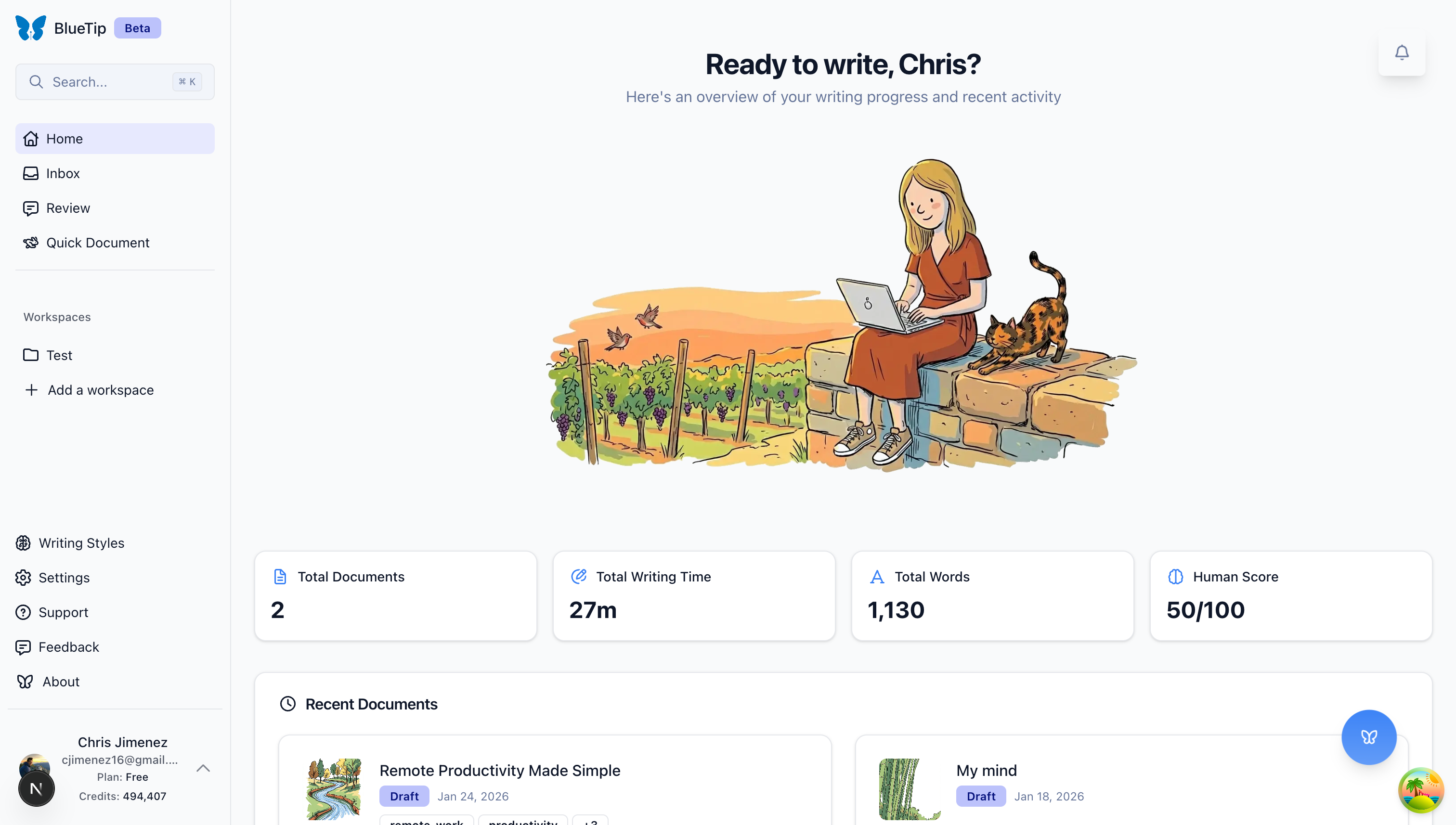
Step 1: Create a New Document
After signing up, click the + New Document button in your dashboard. Give it a name that makes sense to you, “Weekly Newsletter #12” or “API Documentation v2” works great.
Step 2: Choose Your Starting Point
Here’s where BlueTip differs from other writing tools. You don’t have to start with a blank page:
- Start with Brainstorm if you know the topic but need angles, hooks, or specific ideas
- Start with Outline if you know what to say but need structure
- Start with Write if you already have notes and just need to flesh them out
Most users start with Brainstorm or Outline, then move to Write mode once they have direction.
Step 3: Let AI Help (Without Taking Over)
In any mode, BlueTip’s AI is there to assist, not replace you. Here’s how it works:
In Brainstorm Mode:
- Enter your topic or rough idea
- BlueTip generates multiple angles, hooks, or directions
- Thumbs up the ones you like; the AI learns your preferences
In Outline Mode:
- Describe what you’re writing (a blog post, script, documentation)
- BlueTip structures your content with sections and key points
- Drag, drop, and edit until the structure feels right
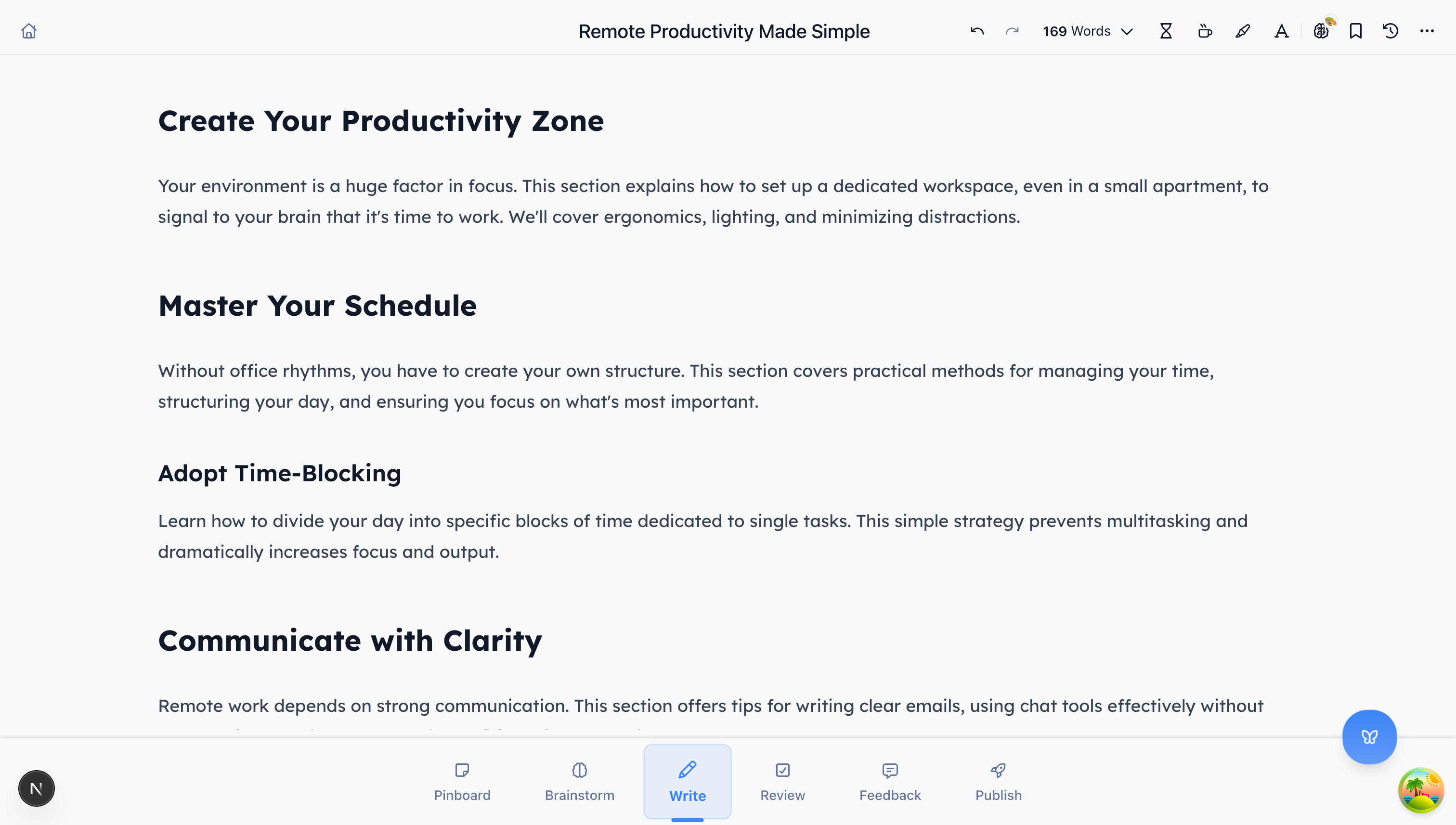
In Write Mode:
- Start writing or paste existing notes
- When you’re stuck, hit the AI button for suggestions
- BlueTip analyzes your tone and writes in your voice
Step 4: Review Your Work
Switch to Review Mode for a fresh perspective:
- Get AI feedback on clarity, flow, and engagement
- Use Read Aloud to hear how your writing sounds
- Address suggestions one by one, or dismiss the ones that don’t fit
Step 5: Publish
When you’re happy with your content:
- Export to Markdown, HTML, or PDF
- Copy directly to your clipboard
- Or use our integrations to publish directly to your platform
Tips for Getting the Most Out of BlueTip
-
Be specific with prompts - “Write a blog post” is vague. “Write a 1,500-word tutorial on setting up a home lab for software engineers” gives BlueTip context to work with.
-
Use your own words first - The AI works best when it has something to analyze. Even rough notes help it understand your voice.
-
Don’t accept everything - BlueTip is a partner, not a replacement. Edit, refine, and make suggestions your own.
-
Try Read Aloud - You’ll catch awkward phrasing your eyes missed. Trust us on this one.
What’s Next?
Now that you’ve created your first document, explore:
- Mastering Brainstorm Mode - Never run out of ideas again
- The Power of Read Aloud - Why hearing your writing changes everything
- BlueTip Pricing Guide - Find the plan that fits your workflow
Happy writing!