Outline Mode: The Secret to Writing That Flows


Outline Mode: The Secret to Writing That Flows
Here’s why so much content feels disorganized: the writer started writing before they knew where they were going. Outline Mode prevents that problem entirely.
The Problem with Winging It
When you write without an outline, you’re doing two things at once:
- Figuring out what to say
- Saying it well
That’s like trying to navigate and drive at the same time. You can do it, but you’ll make wrong turns, backtrack, and arrive frustrated.
Professional writers separate these tasks. First, they map the journey. Then they drive.
What is Outline Mode?
Outline Mode sits between Brainstorm and Write. You’ve chosen your topic and angle; now you need structure.
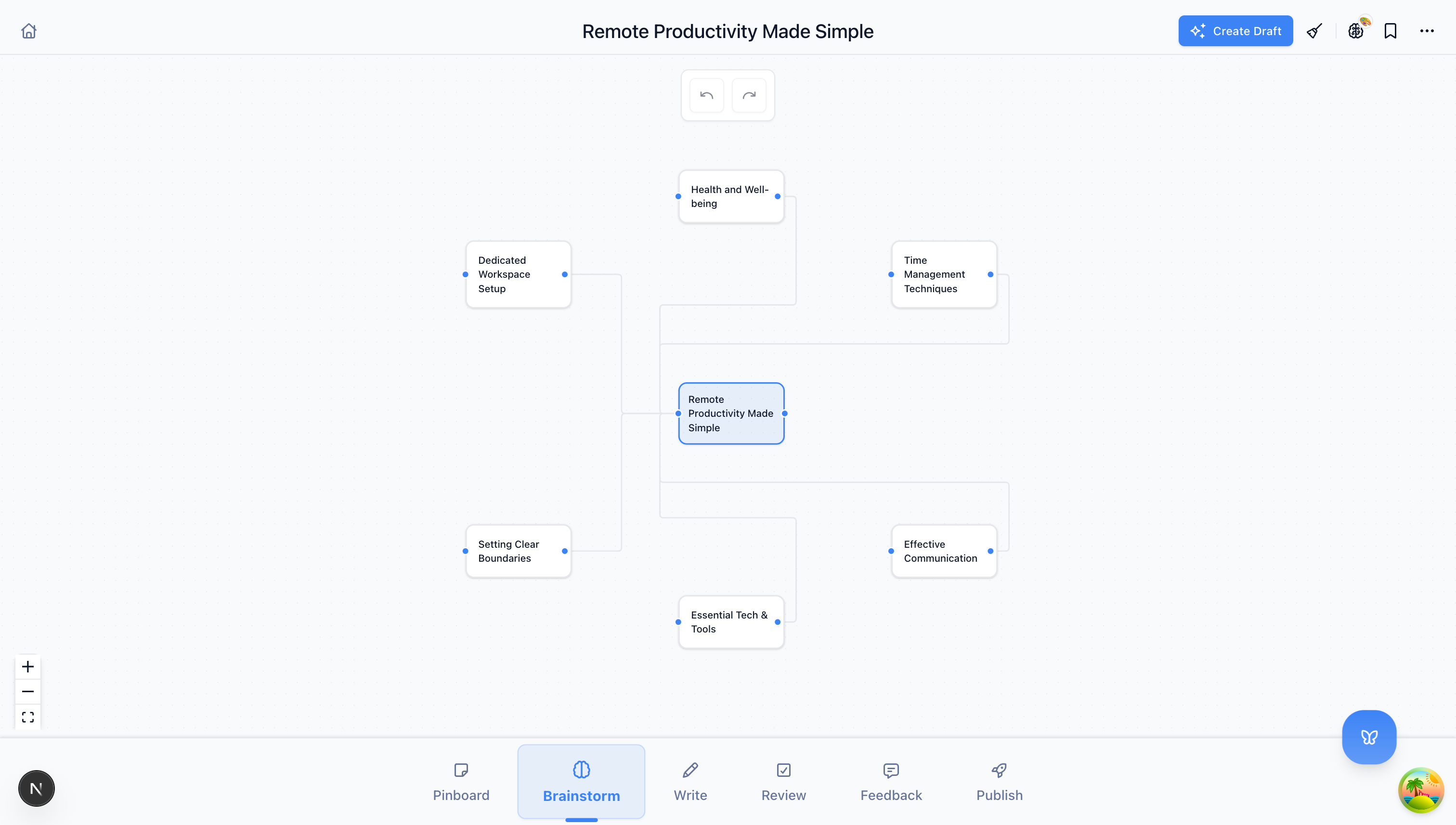
In Outline Mode, BlueTip helps you:
- Break your topic into logical sections
- Order those sections for maximum impact
- Identify gaps in your argument or narrative
- See your entire piece at a glance
The result is a roadmap that makes writing almost effortless.
How Outline Mode Works
Starting Fresh
Enter your topic and type of content (blog post, documentation, script, etc.). BlueTip generates a suggested structure:
Example for “How to Start a Podcast”:
- Introduction - Why now is the perfect time to start
- Equipment You Actually Need - Skip the expensive gear
- Planning Your First 10 Episodes - Consistency beats perfection
- Recording Your First Episode - Just hit record
- Editing Basics - Good enough is good enough
- Publishing and Distribution - Get on every platform
- Growing Your Audience - The long game
- Conclusion - Your podcast journey starts today
Each section includes bullet points with key ideas to cover.
From Brainstorm
If you’ve already used Brainstorm Mode, your chosen idea flows directly into Outline:
- Click your favorite brainstorm idea
- Select “Create Outline”
- BlueTip structures content around that specific angle
The AI remembers your direction and builds a framework to support it.
Editing Your Outline
The generated outline is a starting point, not a prescription. You can:
- Drag and drop sections to reorder them
- Add sections for topics BlueTip missed
- Delete sections that don’t fit your vision
- Edit bullet points to refine what each section covers
- Expand sections to add more detail before writing
Spend 5-10 minutes refining your outline. It saves hours of restructuring later.
Outline Patterns That Work
The Problem-Solution Pattern
- Hook with the problem
- Agitate the problem (why it matters)
- Introduce the solution
- Explain how the solution works
- Prove it works (examples, evidence)
- Call to action
Best for: tutorials, product content, persuasive writing
The Listicle Pattern
- Introduction with promise
- Item 1 (most important or surprising)
- Item 2
- …
- Item N (end with actionable)
- Conclusion with next steps
Best for: tips articles, roundups, how-to guides
The Story Pattern
- Opening scene (in the action)
- Background context
- The challenge or conflict
- The journey or struggle
- The resolution
- The lesson learned
- Application for the reader
Best for: personal essays, case studies, brand stories
The Comparison Pattern
- Introduction to the choice
- Option A deep dive
- Option B deep dive
- Head-to-head comparison
- Recommendation by use case
- Conclusion
Best for: reviews, buying guides, tool comparisons
BlueTip recognizes these patterns and suggests the right one based on your topic.
From Outline to Writing
When your outline feels solid, move to Write Mode:
- Click “Start Writing”
- BlueTip loads your outline as the foundation
- Each section appears as a heading
- Bullet points become writing prompts
You’re never staring at a blank page. You’re filling in the structure you already created.
Advanced Outline Techniques
The Zoom Technique
Start with high-level sections, then zoom into each one:
- Create a 5-7 section outline
- Select one section
- Expand it into 3-5 sub-sections
- Repeat for complex sections
This prevents outline paralysis while ensuring depth where it matters.
The Reader Journey Check
Before finalizing, read your outline as a reader would:
- Does each section logically lead to the next?
- Would a reader want to keep going after each section?
- Is there a clear payoff at the end?
If any answer is no, restructure.
The Time Allocation Method
Estimate how many words each section needs:
- Introduction: 100 words
- Section 1: 300 words
- Section 2: 500 words
- …
This reveals imbalances. A section that needs 1000 words might need to be split. A section that only needs 50 words might be unnecessary.
When to Skip Outline Mode
Not every piece needs a full outline:
- Very short content (under 300 words) - just write
- Stream of consciousness pieces - by design, unstructured
- Updates and announcements - template-driven
But for anything substantial: blog posts, documentation, scripts, reports, Outline Mode is worth the 5-minute investment.
Try It Now
Think of something you’ve been meaning to write. Open BlueTip, enter the topic in Outline Mode, and review the suggested structure.
Edit it until it feels right. Then start writing.
You’ll be amazed how much easier the words come when you know where they’re going.
Outline Mode is available on all BlueTip plans. Structure your next piece for free.